

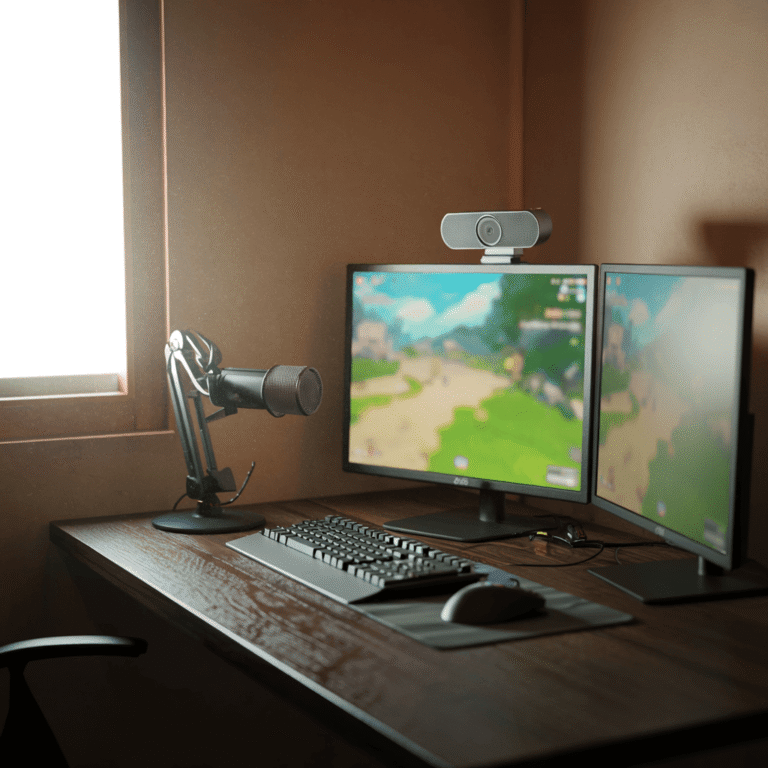
So you want to start streaming but the gear lists online make it look like you need a small production studio. You don’t. A functional beginner setup comes down to five pieces of equipment and a few hundred dollars—most of which goes toward making sure you sound clear, not look cinematic.
This guide walks through every component you actually need, what to skip for now, and how to set everything up without overcomplicating your first broadcast.
1. What is a Beginner Streaming Setup
A beginner streaming setup consists of five core pieces: a computer with at least an Intel i5 or Ryzen 5 processor and 8GB of RAM, a USB microphone like the FIFINE K669B, a 1080p webcam such as the Logitech C920, free broadcasting software like OBS Studio, and a stable internet connection. Most beginners can put together a functional setup for somewhere between $250 and $500, with the bulk of that budget going toward audio and lighting rather than an expensive camera.
The idea here is pretty straightforward. You want equipment that captures your voice clearly and shows your face without looking grainy or washed out. Everything else—fancy overlays, multiple camera angles, professional-grade microphones—can come later once you’ve figured out whether streaming actually fits into your life.
2. What You Need to Start Streaming
Microphone for Clear Audio
Here’s something that surprises a lot of new streamers: audio is a bigger retention killer than video quality, and viewers will leave almost immediately if your sound is muffled or echoey. Your microphone is the single most important piece of gear in your setup.
USB microphones are the easiest starting point because they plug directly into your computer without any extra equipment. A few solid options to consider:
- FIFINE K669B: Runs around $40 and delivers surprisingly clear sound for the price
- Audio-Technica ATR2100: Works with both USB and XLR, so you can upgrade your audio setup later without replacing the mic
- Blue Yeti Nano: Compact design with multiple pickup patterns for different recording situations
Camera or Webcam
A webcam is simply a camera that connects to your computer and captures your face for viewers. The Logitech C920 and C922 remain the standard recommendations because they produce reliable 1080p video without much fuss. If you want to test streaming before spending money, your smartphone can work as a temporary webcam through apps like DroidCam or Camo.
Computer or Gaming PC Requirements
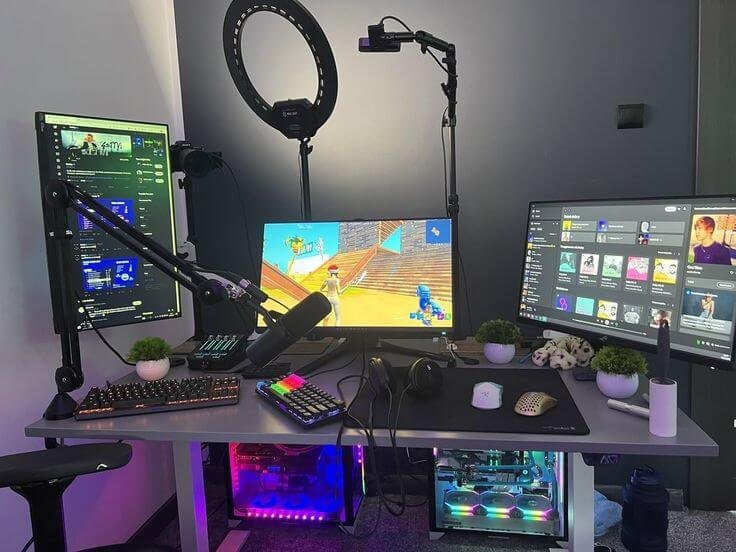
Your gaming PC handles two tasks at once when you stream: running your game and encoding your video feed. Encoding is the process of compressing your video so it can be sent over the internet in real time. This dual workload means you want a processor that can keep up.
- Processor: Intel i5 or AMD Ryzen 5 at minimum
- RAM: 8GB works, though 16GB gives you more breathing room
- GPU: A dedicated graphics card helps offload encoding work from your processor
Internet Speed for Streaming
Upload speed determines how smoothly your stream reaches viewers. This is different from download speed, which affects what you receive from the internet. Most people have much faster download than upload, so check your upload specifically.
A wired Ethernet connection is far more reliable than Wi-Fi, even if your wireless speeds look good on paper. Dropped frames and random lag spikes often trace back to Wi-Fi instability rather than raw speed issues.
Capture Card for Console Streaming
A capture card is a device that routes video from your console to your PC for broadcasting. You only need one if you’re streaming from a PS5, Xbox, or Switch and want features like custom overlays and scene transitions. The NZXT Signal HD60 and Elgato HD60 X are both solid entry points for console streamers.
3. Best Streaming Gear for Beginners
Best Budget Webcams for Streaming
| Webcam | Resolution | Why It Works |
|---|---|---|
| Logitech C920 | 1080p/30fps | Reliable image quality, widely available |
| Logitech C922 | 720p/60fps | Smoother motion for fast-paced content |
| Razer Kiyo | 1080p/30fps | Built-in ring light saves desk space |
Best Microphones for New Streamers
The FIFINE K669B handles tight budgets well. It’s not fancy, but it captures voice clearly enough to keep viewers engaged. Moving up in price, the Blue Yeti Nano offers better sound quality with multiple recording patterns. For streamers planning to upgrade their audio setup later, the Audio-Technica ATR2100 works with both USB and XLR connections, so you won’t have to replace it when you eventually add an audio interface.
Best Capture Cards for Beginners
Console streamers broadcasting through a PC will want either the NZXT Signal HD60 or Elgato HD60 X. Both handle 1080p capture reliably and integrate smoothly with streaming software. The price difference between them is minimal, so availability often determines the choice.
Best Lighting for Your Stream
Good lighting transforms webcam quality more than any camera upgrade. A ring light positioned in front of you creates even facial lighting without harsh shadows under your eyes or nose. Natural light from a window works surprisingly well as a free alternative, though you want the window in front of you rather than behind.
4. How Much Does a Streaming Setup Cost
Streaming Starter Kit for Entry-Level Budgets
The cheapest viable setup uses gear you already own. Your gaming headset microphone and smartphone-as-webcam can get you streaming for nearly nothing. This approach lets you test whether streaming appeals to you before investing real money.
Mid-Level Streaming Setup for Better Quality
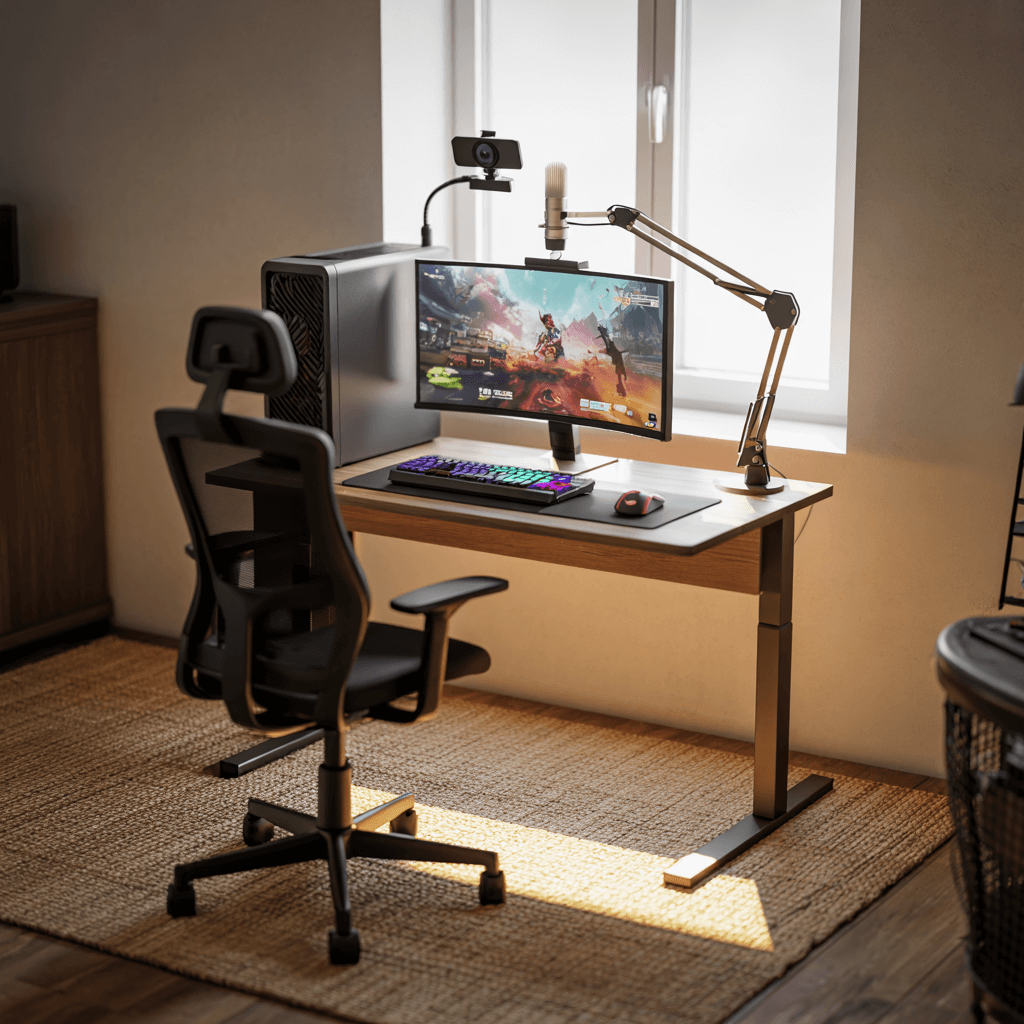
The sweet spot for committed beginners runs between $250 and $500. This budget covers the setup essentials—a dedicated USB microphone, a proper webcam, and basic lighting. You’ll notice a significant quality jump that makes your stream look intentional rather than improvised.
Quality Streamer Setup for Serious Streamers
Once you’ve built an audience and confirmed streaming fits your life, upgrades start making sense. XLR microphones with audio interfaces, premium webcams or mirrorless cameras, and professional lighting kits fall into this category. Most streamers reach this point after several months of consistent broadcasting.
5. How to Design Your Streaming Space
Choosing Your Streaming Background
What appears behind you shapes how viewers perceive your stream. A clean wall works fine, while LED strips or shelving with gaming collectibles adds personality. Green screens require excellent lighting to look good—without proper illumination, you’ll end up with fuzzy edges and color spill around your outline.
If you’re looking for inspiration on designing your streaming space, check out our setup gallery for ideas that balance aesthetics with functionality.
Desk Layout and Cable Management
Monitor placement matters for maintaining eye contact with your camera while tracking chat. Boom arms keep microphones at mouth level without cluttering your gaming desk surface. Small setup accessories like cable clips and sleeves prevent the tangle of wires that inevitably appears on camera at the worst moments.
Lighting Placement for Better Video
The fundamental rule: light sources go in front of you, not behind. Overhead-only lighting creates unflattering shadows under your eyes and nose. A ring light or desk lamp positioned slightly above eye level and facing you solves most lighting problems instantly.
6. How to Set Up Your Stream
1. Position Your Equipment
Place your webcam at eye level, centered on your monitor. Your microphone works best slightly off to the side of your mouth or mounted on a boom arm to stay out of frame. Lighting goes in front of you, angled slightly downward.
2. Connect Your Audio and Video Gear
USB devices are genuinely plug-and-play. Connect them to your PC’s USB ports, then check your system settings to confirm your computer recognizes each device. Windows and Mac both have sound settings panels where you can verify your microphone and webcam appear as available inputs.
3. Configure Your Streaming Software
Open OBS or Streamlabs and add your sources: game capture for your gameplay, video capture for your webcam, and audio input for your microphone. Create scenes for different stream states—a starting screen, your main gameplay view, and a “be right back” screen. Enter your stream key from Twitch or YouTube in the settings panel. Your stream key is a unique code that connects your software to your channel.
4. Test Before You Go Live
Record a test video or run a private stream before your first public broadcast. Check that your audio levels sound balanced, your webcam framing looks intentional, and your game capture actually shows your gameplay. This five-minute test prevents embarrassing technical failures in front of an audience.
7. Best Free Streaming Software
OBS Studio
OBS Studio is the industry standard—free, open-source, and extremely powerful. The learning curve is steeper than alternatives, though countless tutorials exist online. OBS works well for streamers who want maximum control and don’t mind spending time learning the interface.
Streamlabs Desktop
Streamlabs builds on the OBS engine with a friendlier interface and built-in alerts. It’s an all-in-one solution that gets beginners streaming faster. The tradeoff is slightly higher system resource usage compared to vanilla OBS.
Twitch Studio for Beginners
Twitch’s own software walks you through setup with guided prompts and automatic configuration. It’s the easiest path to your first stream, though it only works with Twitch—no YouTube or other platforms.
8. Choosing the Best Platform for Twitch or YouTube Streaming
Streaming on Twitch
Twitch dominates gaming livestreams with 240 million monthly active users, built-in discovery features, and an engaged community. Interactive elements like chat, emotes, and channel points create connection with viewers. Twitch works best for streamers who thrive on real-time interaction.
Streaming on YouTube Live
YouTube offers superior discoverability after your stream ends, with YouTube Gaming reaching 8.8 billion hours watched in 2025. Past broadcasts become searchable videos that can attract viewers for months. If you already have a YouTube presence or want your content to have lasting value, YouTube makes sense.
Multistreaming to Multiple Platforms
Tools like Restream let you broadcast to Twitch, YouTube, and other platforms simultaneously. However, Twitch Affiliates and Partners face exclusivity restrictions that limit multistreaming. Check platform terms before committing to this approach.
9. How to Stream from PS5 and Xbox Without a PC
Modern consoles include built-in streaming to Twitch and YouTube—no capture card or PC required. On PS5, use the Create button and link your streaming account in settings. Xbox users download the Twitch app directly to the console.
The limitation: console-only streaming lacks custom overlays, scene transitions, and alerts. You’re broadcasting raw gameplay with your voice. For many beginners, this simplicity is actually an advantage while learning the basics of engaging with chat and maintaining commentary.
10. Streaming Mistakes Every Beginner Should Avoid
- Ignoring audio quality: Your microphone investment matters more than your webcam
- Streaming in silence: Talk even with zero viewers—VODs and clips need commentary to be watchable later
- Overcomplicating early: Start simple, then add alerts and overlays after you’re comfortable with the basics
- Poor lighting: A dark webcam feed looks unprofessional regardless of camera quality
- Using Wi-Fi: Ethernet connections prevent the dropped frames that kill streams
11. Build Your Perfect Game Streamer Setup
Your streaming setup is part of your larger gaming setup, especially for beginners. The equipment choices you make affect both your broadcast quality and your daily gaming experience. Starting simple lets you learn what actually matters to your specific gaming room before investing in upgrades.
For inspiration on designing a streaming room that looks as good as it performs, explore the where gamers share their builds and gear choices.
FAQs About Beginner Streaming Setups
Yes, a headset mic works for testing whether streaming appeals to you. Dedicated USB microphones offer noticeably better audio quality that keeps viewers watching longer, so consider upgrading once you commit to regular streaming. Green screens are entirely optional. Many successful streamers use their actual room as a background, and a clean, well-lit space often looks better than a poorly-lit green screen with fuzzy edges. You want stable upload speed with headroom above your stream's bitrate—typically 6-8 Mbps for 1080p. A wired Ethernet connection matters more than raw speed for preventing dropped frames. Multistreaming tools like Restream make this possible, though Twitch Affiliates and Partners face exclusivity requirements. Check platform terms before broadcasting to multiple destinations. Your microphone. Viewers tolerate lower video quality, but poor audio causes them to leave immediately. A decent USB mic is your highest-impact first purchase. No—streaming software captures gameplay directly from your PC. Capture cards are only necessary for console streaming through a computer.🎙️ Can I start streaming with just a gaming headset microphone?
🎙️ Do I need a green screen to start streaming?
🎙️ What upload speed do I need to stream at 1080p?
🎙️ Can I stream on Twitch and YouTube at the same time?
🎙️ What is the most important piece of streaming equipment to buy first?
🎙️ Do I need a capture card if I stream from a gaming PC?


